Investigate application errors
On this page
Related contents
A checkout release starts producing payment errors. Is every payment method affected, or should you investigate one gateway?
Keep a checkout simulator running while it sends structured application logs through the JavaScript SDK. Use Console to compare the arriving requests, locate the affected gateway, and inspect a failure. The repeating pattern is timeouts in release 1.9 credit-card payments, with bank transfers unaffected.
Allow about 15 minutes after workspace setup. Each cycle simulates 12 payment attempts, and cycles continue until you press Ctrl+C. The program does not contact a payment provider or use customer data.
1. Connect the sample application
You need a ready ScopeDB Cloud workspace, Node.js 20 or later, Git, and a terminal (macOS, Linux, or WSL). Use a test workspace: the program creates guide_logs.requests and continuously writes logs in the default scopedb database.
In your workspace, open Connect and copy the address labeled ScopeDB API.
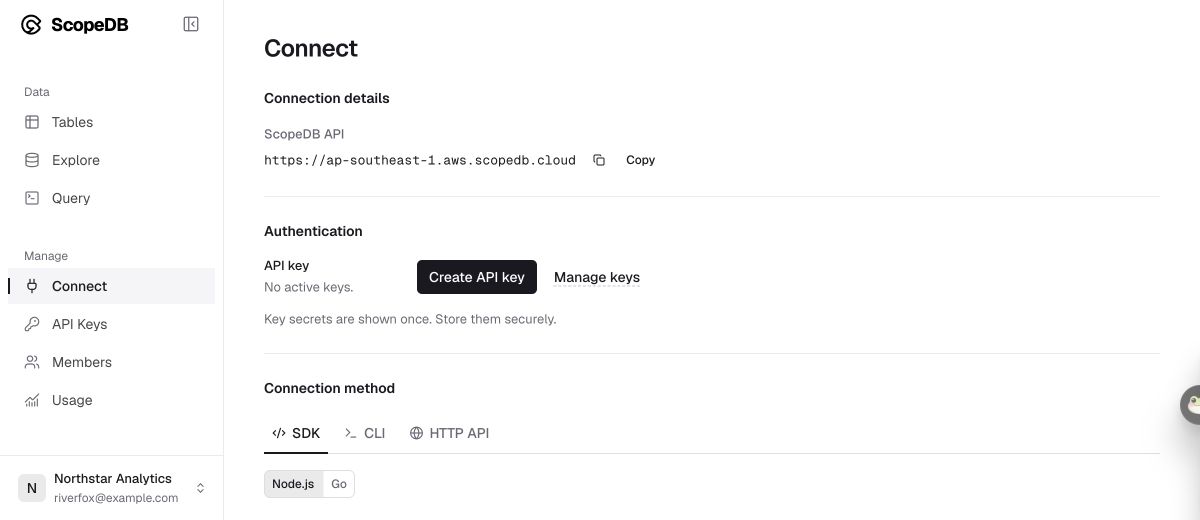
Choose Create API key, give it a name such as event-tutorial, and choose an expiration. Select Create Key and copy the one-time secret. The connection walkthrough covers setup in more detail.
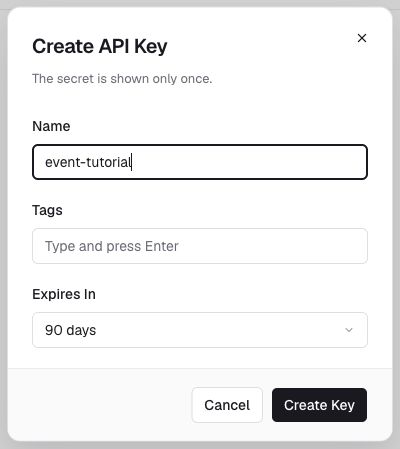
Set the address and secret in the terminal where you will run the application:
export SCOPEDB_ENDPOINT="https://<endpoint>"
export SCOPEDB_API_KEY="<api-key>"
Keep the key in your local environment, outside source control. The program runs on your machine; your Console browser sign-in does not authenticate it.
Clone the Demo Scene repository and enter the application-log example. The project pins the JavaScript SDK to scopedb 0.3.0; npm ci installs its locked dependencies.
git clone https://github.com/scopedb/demo-scene.git scopedb-demos
cd scopedb-demos/application-logs
npm ci
If you already cloned the repository for another tutorial, enter its application-logs directory instead. The program, dependency lockfile, tests, and saved queries live together there.
2. Send structured request logs
Before producing logs, the simulator creates the guide_logs schema and this table if they do not exist. You do not need to run this definition separately:
CREATE TABLE guide_logs.requests (
    time timestamp,
    service string,
    level string,
    message string,
    var object
)
In each cycle, the simulator runs three attempts for each combination of release (1.8, 1.9) and gateway (credit_card, bank_transfer). Its payment function raises a timeout for two credit-card attempts in release 1.9. A request handler records both successful and failed attempts:
const log = {
  time: new Date().toISOString(), service: "checkout", level, message,
  var: { run_id: runId, request_id: requestId, release, gateway },
};
console.log(JSON.stringify(log));
await stream.send(log);
Each request produces one log. time, service, level, and message have typed columns; request context stays together in the var object. The same pattern fits a server request handler: keep the fields you need to compare alongside the message that explains the failure.
Start the producer with a label for this investigation, and leave this terminal running while you use Console:
SCOPEDB_DEMO_RUN=checkout-first npm startThe program prints the run ID and keeps producing logs. Each cycle has ten successful requests and two credit-card timeouts. The SDK dispatches buffered logs within about one second; send() alone is not a delivery acknowledgement.
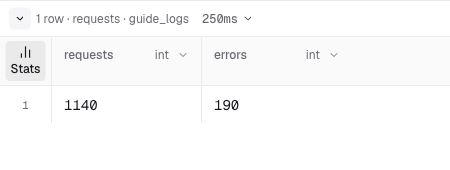
Open Console in your browser while the producer continues. After viewing a result, select Run again to include newly committed requests. Console Query shows the result of each execution, rather than automatically updating the previous result.
When you finish the walkthrough, press Ctrl+C. The program stops generating requests, waits for stream.shutdown(), and reports how many logs committed. If delivery fails, inspect the run before retrying. Use a fresh run ID when restarting this exercise so earlier requests remain separate.
For a fixed verification run, use SCOPEDB_DEMO_RUN=checkout-check npm start -- --cycles 1. That explicitly stops after 12 requests; the default producer keeps running.
3. Compare releases and gateways
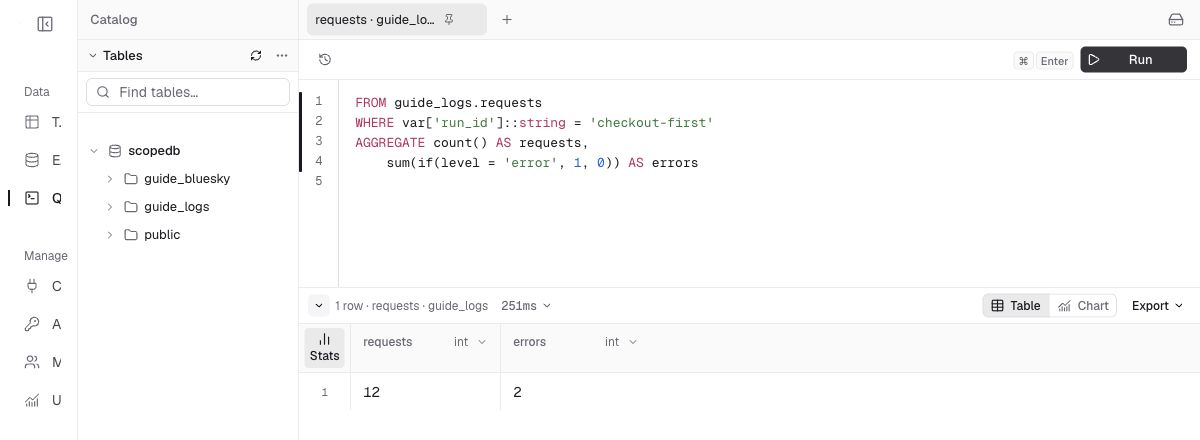
Open Query in the same Console workspace. Run each ScopeQL block separately using Run. First, verify the complete request population:
FROM guide_logs.requests
WHERE var['run_id']::string = 'checkout-first'
AGGREGATE count() AS requests,
    sum(if(level = 'error', 1, 0)) AS errors
After the first complete cycle has committed, expect at least 12 requests and two errors. Select Run again after a few seconds: both counts should grow. The screenshot shows one completed cycle. Successful requests matter: counting only error logs cannot tell you the failure rate.
Select Run again while the producer stays active. The same query includes newly committed requests:
Compare each release and gateway:
FROM guide_logs.requests
WHERE var['run_id']::string = 'checkout-first'
SELECT level, var['release']::string AS release,
    var['gateway']::string AS gateway
GROUP BY release, gateway
AGGREGATE count() AS requests,
    sum(if(level = 'error', 1, 0)) AS errors
SELECT *, 100.0 * errors / requests AS error_percent
ORDER BY release, gateway| release | gateway | requests | errors | error_percent |
|---|---|---|---|---|
| 1.8 | bank_transfer | 3 | 0 | 0 |
| 1.8 | credit_card | 3 | 0 | 0 |
| 1.9 | bank_transfer | 3 | 0 | 0 |
| 1.9 | credit_card | 3 | 2 | 66.67 |
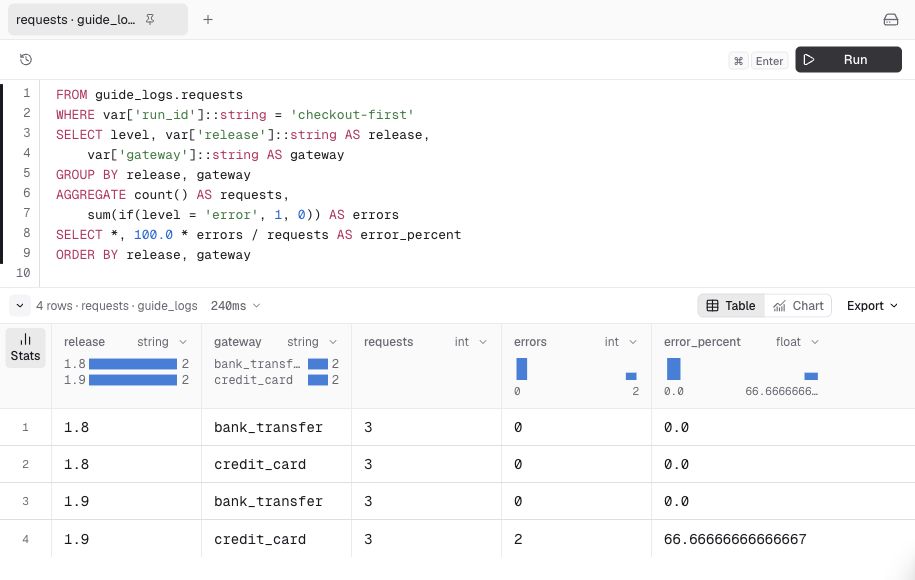
The table and screenshot show one completed cycle; your counts continue increasing. Each complete cycle gives both releases the same number of attempts per gateway. A query during a partially delivered cycle may show temporarily uneven counts. The last percentage is rounded here. The regression stays concentrated in credit-card requests after the release. This gives you a specific next check: the credit-card integration or configuration change in 1.9. It does not establish the cause of a real production incident.
4. Inspect a failed request
Return the error messages with their request identifiers:
FROM guide_logs.requests
WHERE var['run_id']::string = 'checkout-first' AND level = 'error'
SELECT time, message, var['request_id']::string AS request_id, var
ORDER BY time DESC, request_id
LIMIT 10
The first cycle produces req-08 and req-09, both with Credit card gateway timed out; later cycles produce new request IDs. This query shows up to ten recent failures. Double-click a var cell to inspect the release and gateway together in Cell details. Copy a request ID to find the corresponding request in your application's other logs or traces.
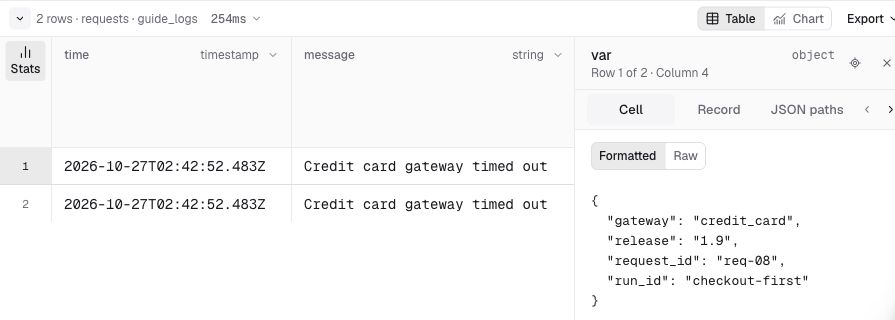
For a visual investigation, open Explore and select the guide_logs schema and requests table. Set the time range to include when you ran the simulator, then enter this WHERE expression:
var['run_id']::string = 'checkout-first' AND level = 'error'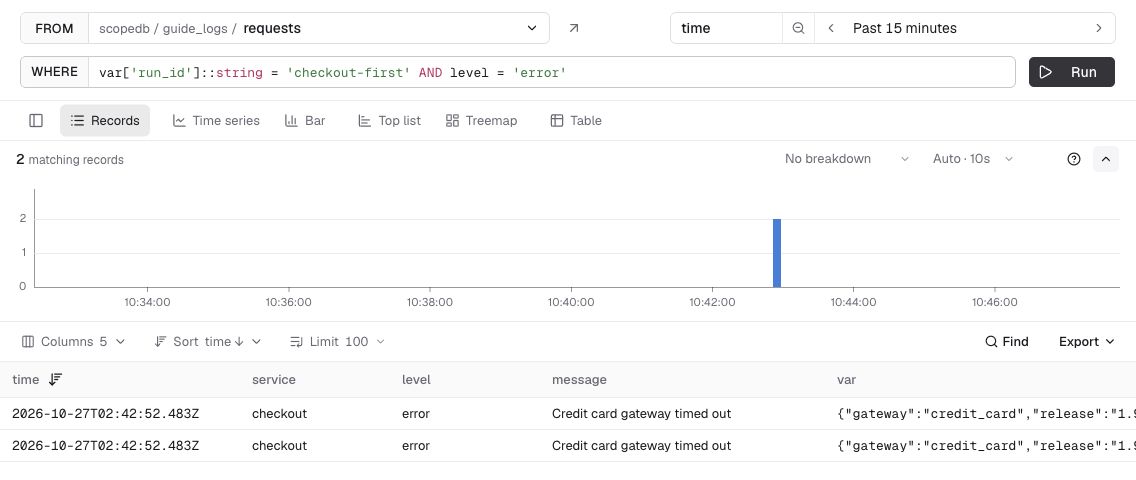
Click either record to open Record details and read its nested fields. If it shows no records, clear or widen the time range: the run ID identifies this exercise, but Explore also applies its selected time window. The Explore walkthrough illustrates the record controls.
You now have an investigation you can repeat as events arrive: a growing request population, errors concentrated in one release/gateway group, and the request IDs and payloads behind them.
5. Apply the workflow to your application
Replace the simulator's payment function with your request handler and keep one outcome log per attempt. Include successful requests when calculating failure rates. Attach request IDs, release versions, and the business dimensions you need to compare; omit credentials and payment details from the payload.
Use a shared SDK client and append stream in your server process. Flush at shutdown and handle delivery failures using the JavaScript SDK guide. The simulator creates its schema at startup to make the demo self-contained. For an application, create and manage table definitions ahead of deployment using Console or the CLI catalog workflow, and keep request handling focused on writes. Integrate buffering and shutdown with your server's lifecycle.
Continue with Model event data when fields evolve, Query events for more investigation patterns, or Set data retention to choose how long to keep these logs.
Troubleshooting
| Symptom | Next step |
|---|---|
401 or 403 | Check the API key, its expiration, the workspace, and the API address copied from Connect. |
| Run ID already has logs | Query that run first. For a fresh exercise, use a new SCOPEDB_DEMO_RUN and change every query filter to match. |
| No rows in Query | Check the selected workspace, schema, run ID, and whether the program printed the commit confirmation. |
| No records in Explore | Check the table and WHERE expression, then widen the selected time range to include the run. |
| Timeout or failed append | Query the run's count before retrying; a lost response can follow a successful write. Use a new run ID for a fresh sample. |