Query in Console
On this page
Open Query when you want to write ScopeQL or continue an investigation from Explore. The editor is above the results, with Catalog beside it to help you find tables and fields.
Run a query
With the quickstart table available, paste this query into the editor:
FROM scopedb.public.events
WHERE service = 'checkout'
SELECT time, name, message
ORDER BY time DESC
LIMIT 20
Select Run, or press Cmd+Enter on macOS or Ctrl+Enter on Windows and Linux. Check the result rows below the editor. Use Cancel to stop waiting for an active query.
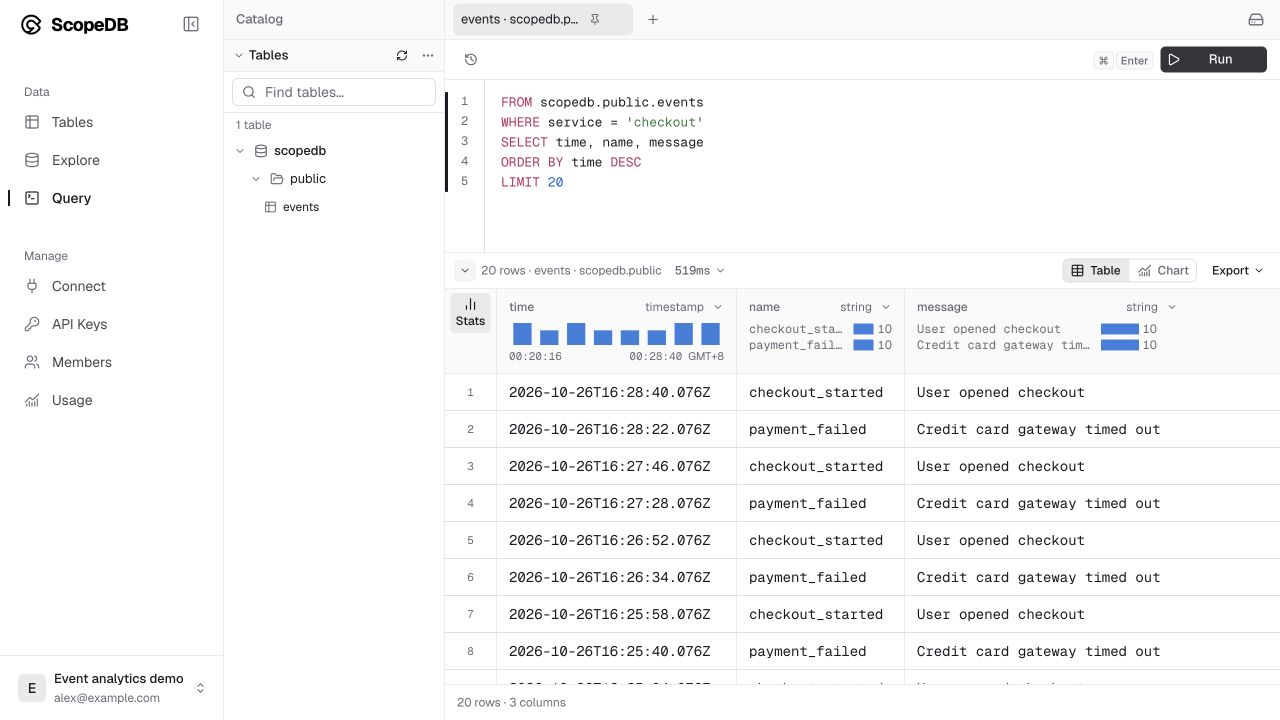
If you arrived from Explore using Open in Query, the editor already contains a query for that view. Edit it and run it to inspect the new result.
Find tables and keep related work together
Expand a database and schema in Catalog to find a table and its column types. Use catalog search when the workspace has many tables. Refresh the catalog after creating a table or changing columns elsewhere.
Create a tab for each investigation and rename tabs to make them easy to find. Drafts and tabs are remembered in this browser for the workspace. When a tab contains several statements, select the statement you want to execute before choosing Run.
Open History to revisit a previous run. Choose an entry to bring its statement back into the editor, then review it before executing it again. Rerunning a statement that writes data performs that write again.
Read, chart, and export results
Open a result cell to inspect a long string or nested object. Switch to Chart when the returned columns form a useful comparison or time series, then choose the chart type and map its fields.
Use the result actions to Copy JSON, Download CSV, or Download TSV. Exports contain the returned result, including any limit in your query. For example, the query above exports at most 20 rows.
Change a table or run a recurring analysis
Run the examples in model event data, add indexes, or set data retention here. Check the workspace and table name before running a change.
For recurring queries from your terminal, save the statement to a file and follow query data with the CLI.