Workspaces and sessions
On this page
Use the workspace and account menu in the sidebar to choose where you are working and find workspace settings or personal preferences. Check the active workspace before creating tables, running statements that change data, or managing access.
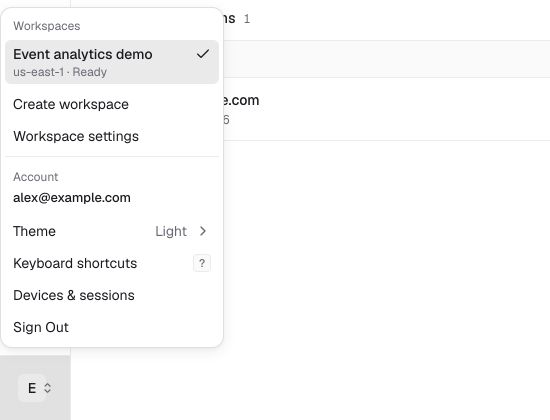
Switch or create a workspace
Open the menu and select a workspace you own or have joined. Check its name after switching, then open the table or query you need. Tables, members, API keys, and usage belong to the selected workspace.
To create a workspace, choose Create workspace, enter a name, and select an available region. Wait until provisioning completes before connecting a client.
Review workspace settings
Open Workspace settings to check the workspace's name, ID, region, owner, and status. Use Manage members or View members to open the member list.
For an application's connection address, use Connect in the selected workspace.
Manage personal sessions and preferences
The account menu also provides Theme, Keyboard shortcuts, Devices & sessions, and Sign Out.
Open Devices & sessions to review personal CLI logins. Find the session you want to end and select Revoke. This ends that terminal session's access; application API keys are managed separately on API Keys.
For a personal terminal login, follow connect the CLI. Use an API key for an unattended application or automated job.