Explore in Console
On this page
Use Explore to answer a question about a table without writing a complete query. This walkthrough investigates checkout failures in the events table from the quickstart.
Find matching events
- Open Explore and choose
scopedb.public.events, or select Open in Explore on the table's details page. - Choose
timeas the time column and a window that includes your events, such as the last hour. - Enter
service = 'checkout'in WHERE. - Select Run. Use Records to inspect the matching rows.
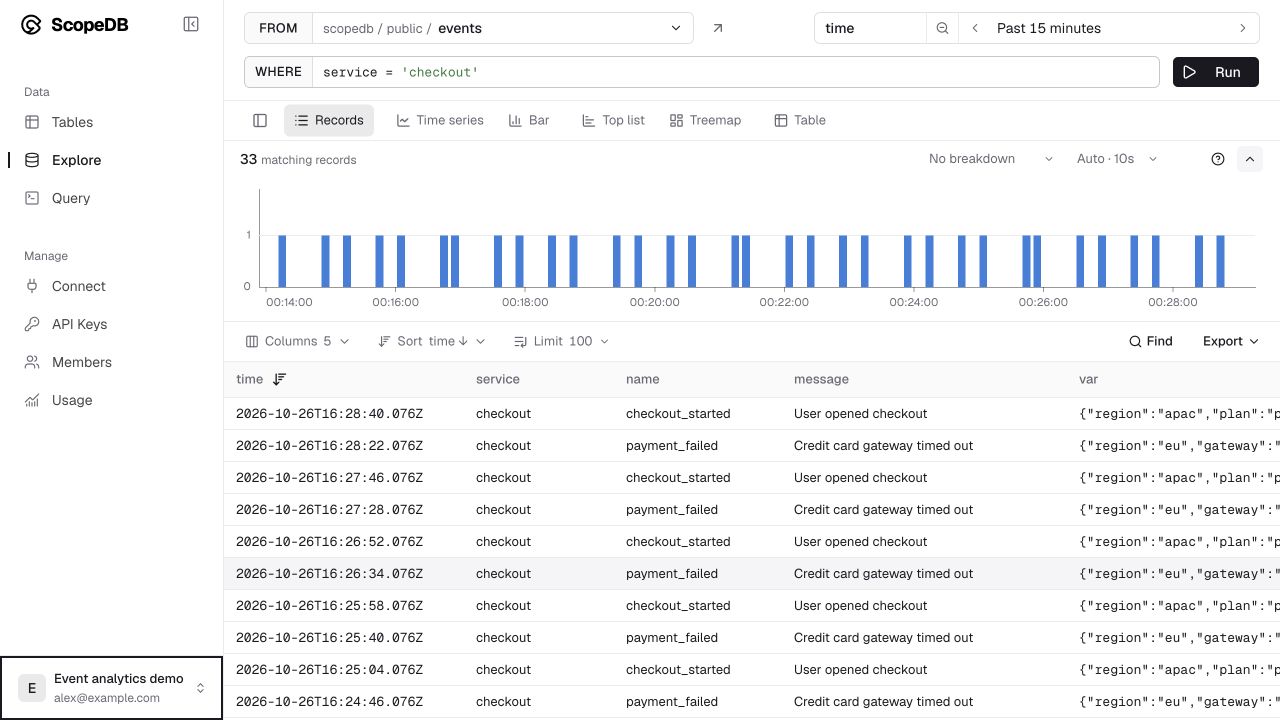
If the result is empty, widen the time range and check the filter. Use a custom range for historical data; check the displayed time zone when entering custom timestamps. Changing a filter prepares the next query: select Run to update the results.
Inspect a failure and its payload
Add AND name = 'payment_failed' to the filter and run again. Open a cell containing a long message or an object to inspect its full value. Expand var to find fields such as gateway and region.
Use a value's include or exclude action to add it to the filter. Show columns opens field distributions, which can help you find common values and add filters. Find searches the rows already loaded; use WHERE when you need to search the table.
For a narrower incident window, drag across the timeline. Use the records toolbar to choose visible columns, sort order, and row limit.
Compare event counts
To see which event types dominate, keep the service filter, remove the event-name filter if you added it, and switch to Top list. Group by name, keep count() as the metric, and select Run.
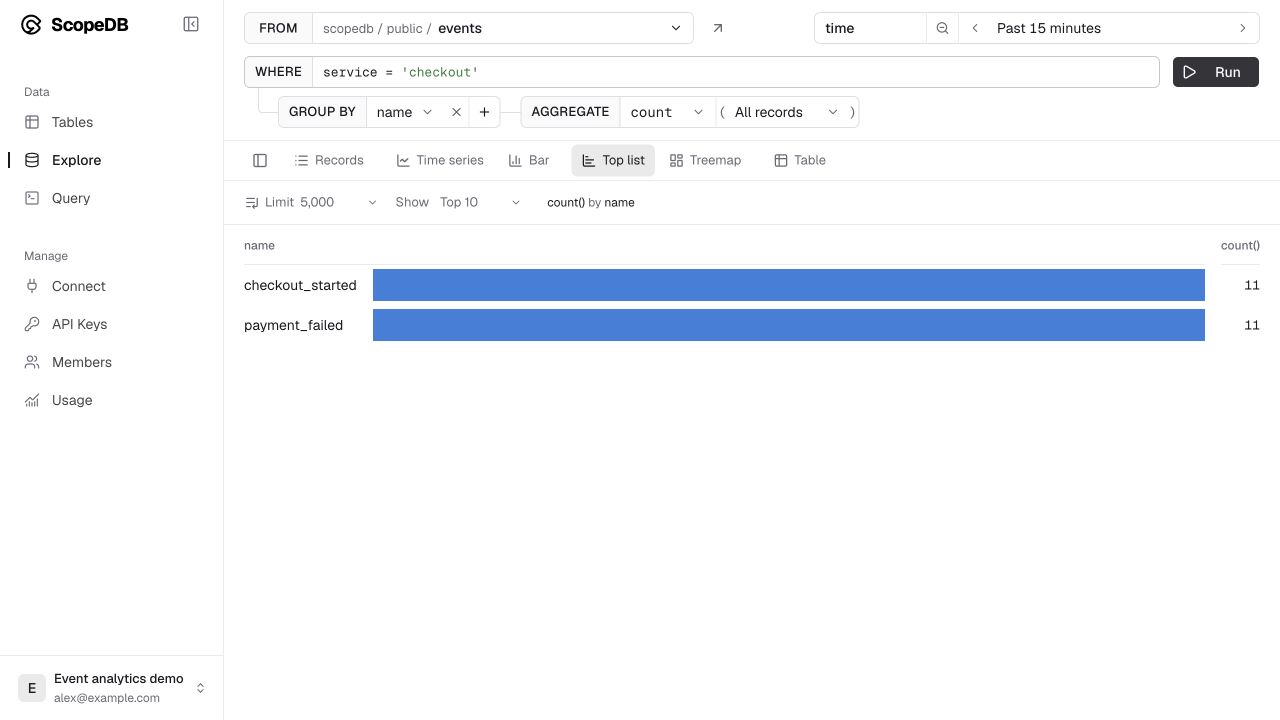
Choose the view that fits the question:
| Question | View |
|---|---|
| What happened in this event? | Records |
| When did volume change? | Time series |
| Which groups have the most events? | Bar or Top list |
| How do groups contribute to a total? | Treemap |
| What are the exact aggregate values? | Table |
Continue or share the investigation
Select Open in Query to open the ScopeQL for your current view. Extend it there when you need another query stage or a join; see query events for examples.
After running a view, copy the browser address to share it with a teammate who has access to the workspace. Use a fixed time range when you want them to investigate the same incident window; a relative range moves with the time of the next run.
Use Export to copy JSON or download CSV or TSV from the loaded result. The export contains the returned rows, so check the filters and row limit before treating it as a complete dataset.