Authentication and API keys
On this page
Create an API key when you want to write or query data from an application, a terminal, or an automated job. Start by signing in to ScopeDB Console and choosing the workspace you want to use.
Create your first key
- Open Credentials in the sidebar and select Create key.
- Enter a Name that identifies its purpose, such as
checkout-ingestor-dev. - Choose an Expires In and add optional Tags to help your team find the key later.
- Select Create key, then copy the secret shown in the confirmation.
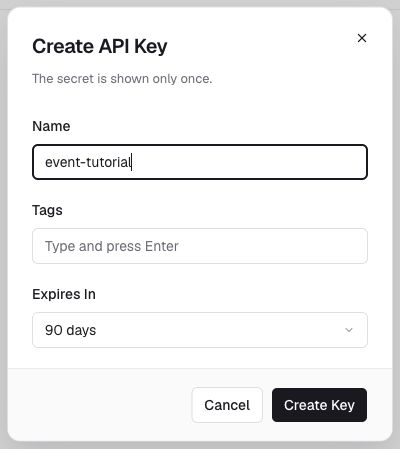
The complete secret appears only once. Save it in your application's secret manager or a protected local environment file. If you lose it, create a replacement key.
Next, connect your client using the key and the ScopeDB API address shown on Home. You can run queries in the Console using your browser sign-in without entering an API key.
Find and replace a key
Use the search field on API Keys to find a key by name, creator, or tag. Check its status and expiration when a previously working client stops connecting.
For a planned rotation:
- Create a replacement key.
- Update your application's secret and verify that it can read or write data.
- Find the old key and select Revoke. Review the confirmation before completing the action.
Revocation cannot be undone. If a key has been exposed, replace it and revoke the exposed key promptly.
Keep keys out of source control, logs, screenshots, and browser or mobile application code. Give separate applications and environments their own keys so replacing one does not interrupt the others.
For CI jobs that run scope data commands, the OpenID Connect tab on the Credentials page manages trust policies that sign the job in without a stored key; see CLI automation. For terminal-based key management, see CLI API keys. For teammate access, use Members.