Tables in Console
On this page
Open Tables to find a dataset and check its structure before querying it. These examples use the events table from the quickstart.
Find and inspect a table
Choose a Database and Schema, or use Search tables to find a table across the workspace. Select events to open its details.
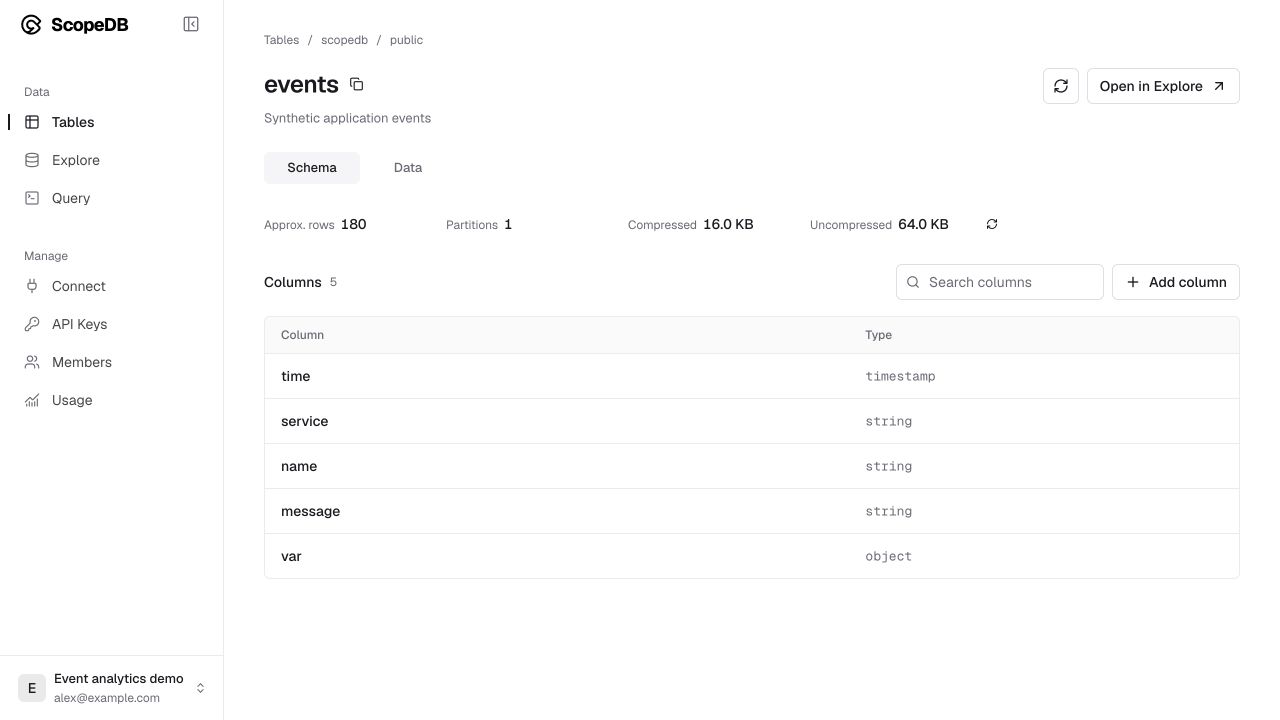
On Schema, check the column names and types. In the example, time is a timestamp, service, name, and message are strings, and var holds a flexible object payload.
The statistics help you understand the table's size:
- Approx. rows estimates how many rows the table contains.
- Partitions shows how many storage partitions hold the table.
- Compressed shows the stored size; Uncompressed helps you compare it with the data's logical size.
Use Data to preview a sample of up to 100 rows. Select Open in Explore when you want to filter by time or investigate specific events. For an exact count, run FROM scopedb.public.events AGGREGATE count() in Query.
Create a table
Select Create table from the table list:
- Choose the destination Database and Schema.
- Enter a Table name.
- Add columns and select their types.
- Review ScopeQL preview, then select Create table.
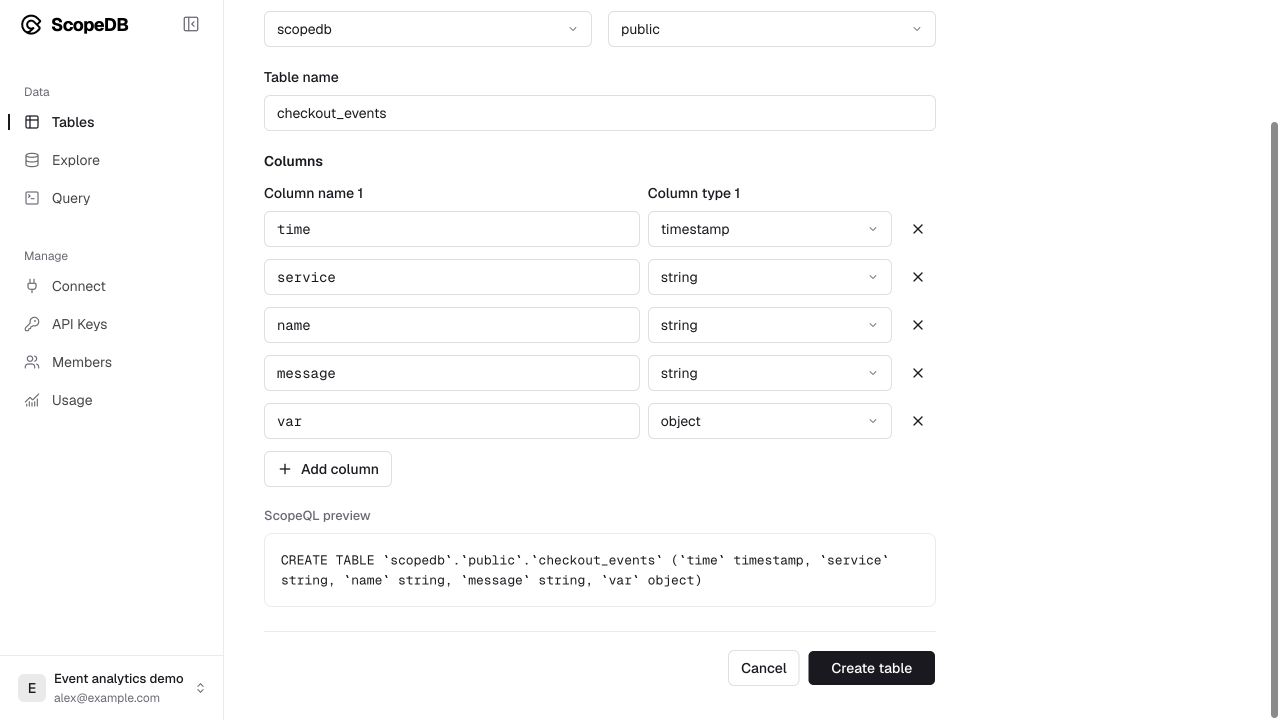
For the quickstart model, add time as timestamp, service, name, and message as string, and var as object. Use a different table name if events already exists.
Add a field or change table options
On Schema, select Add column, enter the name and type, review the preview, and confirm. Existing rows read NULL in the new column. Follow model event data when coordinating a schema change with producers.
Use Query to set retention, add indexes, or configure clustering. Refresh the table details after making a change elsewhere.