Members in Console
On this page
Open Members to see who can use the current workspace. Check the workspace name before inviting someone or changing access.
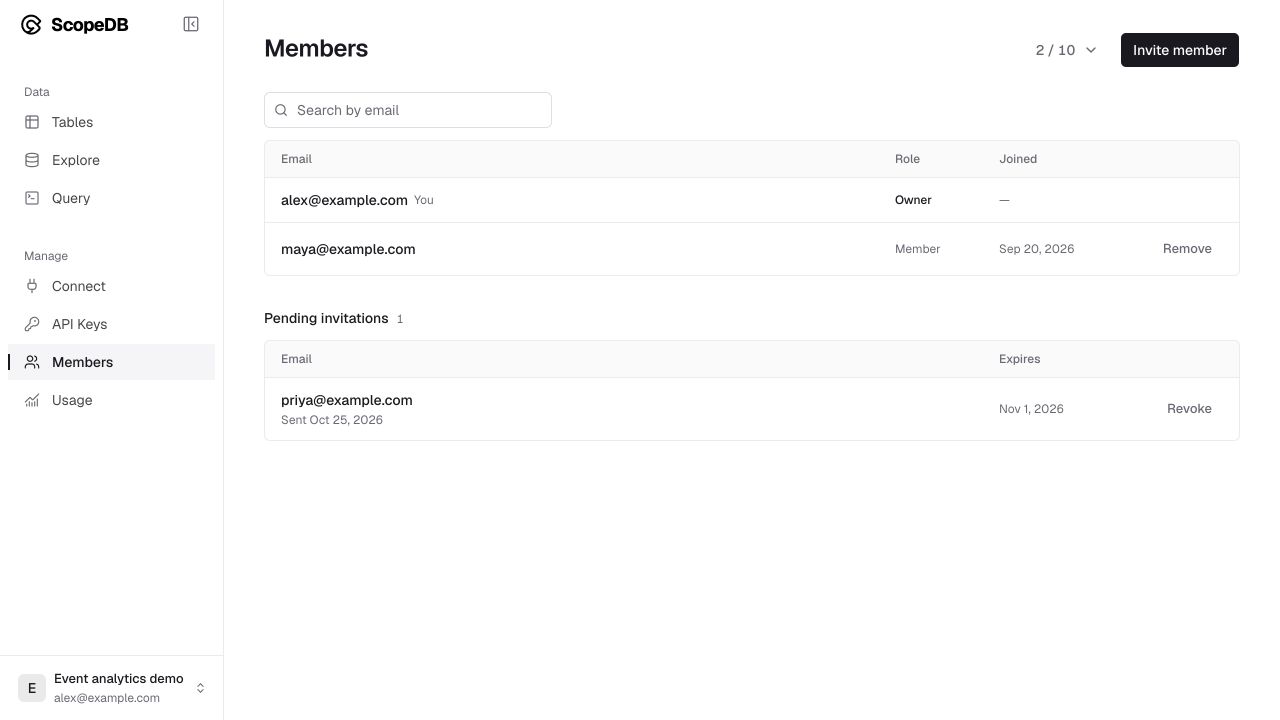
Invite a teammate
The workspace Owner can invite and remove members. A Member can use the workspace's tables, queries, exploration tools, usage, and API keys, and view the member list.
- Select Invite member.
- Enter your teammate's email address and submit the invitation.
- Ask them to open the invitation email, sign in, and accept.
The invitation appears under Pending invitations until accepted. The member-slot count includes members and pending invitations, and excludes the owner. If no seats are available, review pending invitations before inviting another person.
Review or remove access
As the owner, select Revoke beside a pending invitation to cancel it, or Remove beside a member to remove their access. Review and complete the confirmation.
Removing a member does not rotate shared application API keys. Review API Keys and replace keys the person may have handled when required.
Use workspaces and sessions to switch workspace or manage your own terminal sessions.