# Workspaces and sessions
[Read this page in HTML](https://www.scopedb.io/docs/guides/console-workspaces)
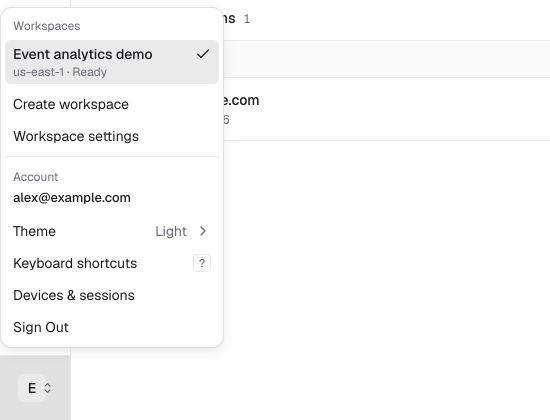
Use the workspace switcher at the top of the sidebar to choose where you are working, create a workspace, or inspect workspace settings. Use the account menu at the top right of the Console header for personal preferences and CLI sessions. Check the active workspace before creating tables, running statements that change data, or managing access.
[](https://www.scopedb.io/content/docs/console/workspace-menu.jpg)
Use the workspace switcher at the top of the sidebar to switch context, create a workspace, or open workspace settings.
## Switch or create a workspace
Hover over the workspace name at the top of the sidebar to open the quick switcher, or click the workspace button to open the **Workspaces** dialog. Select a workspace you own or have joined, or search by workspace name or ID. Tables, members, API keys, and usage belong to the selected workspace.
To create a workspace, select **Create workspace**, enter a name, and choose an available region. Wait until provisioning completes before connecting a client.
## Review workspace settings
Select **Workspace settings** in the workspace switcher (or open a workspace's details in the **Workspaces** dialog) to check the workspace's name, ID, region, owner, and status, or to delete a workspace you own. Use **Manage members** or **View members** to open the [member list](https://www.scopedb.io/docs/guides/console-members.md).
For an application's connection address and setup snippets, open [Home](https://www.scopedb.io/docs/guides/connect-to-scopedb.md) in the selected workspace.
## Manage personal sessions and preferences
Open the account menu at the top right of the Console header to change **Theme** (`System`, `Light`, or `Dark`), view **Keyboard shortcuts** (`?`), open **Devices & sessions**, or **Sign Out**.
Open **Devices & sessions** to review personal CLI logins. Find the session you want to end and select **Revoke**. This ends that terminal session's access; application API keys are managed separately on [API Keys](https://www.scopedb.io/docs/guides/authentication.md).
For a personal terminal login, follow [connect the CLI](https://www.scopedb.io/docs/guides/scopedb-cli/connect.md). Use an API key for an unattended application; for CI jobs that run `scope` data commands, use an [OpenID Connect trust policy](https://www.scopedb.io/docs/guides/scopedb-cli/automation.md) instead.