# Tables in Console
[Read this page in HTML](https://www.scopedb.io/docs/guides/console-tables)
Open **Data** to browse the Catalog, check a table's structure and storage size, or create and update tables. These examples use the `events` table from the [quickstart](https://www.scopedb.io/docs/guides/quickstart.md).
## Find and inspect a table
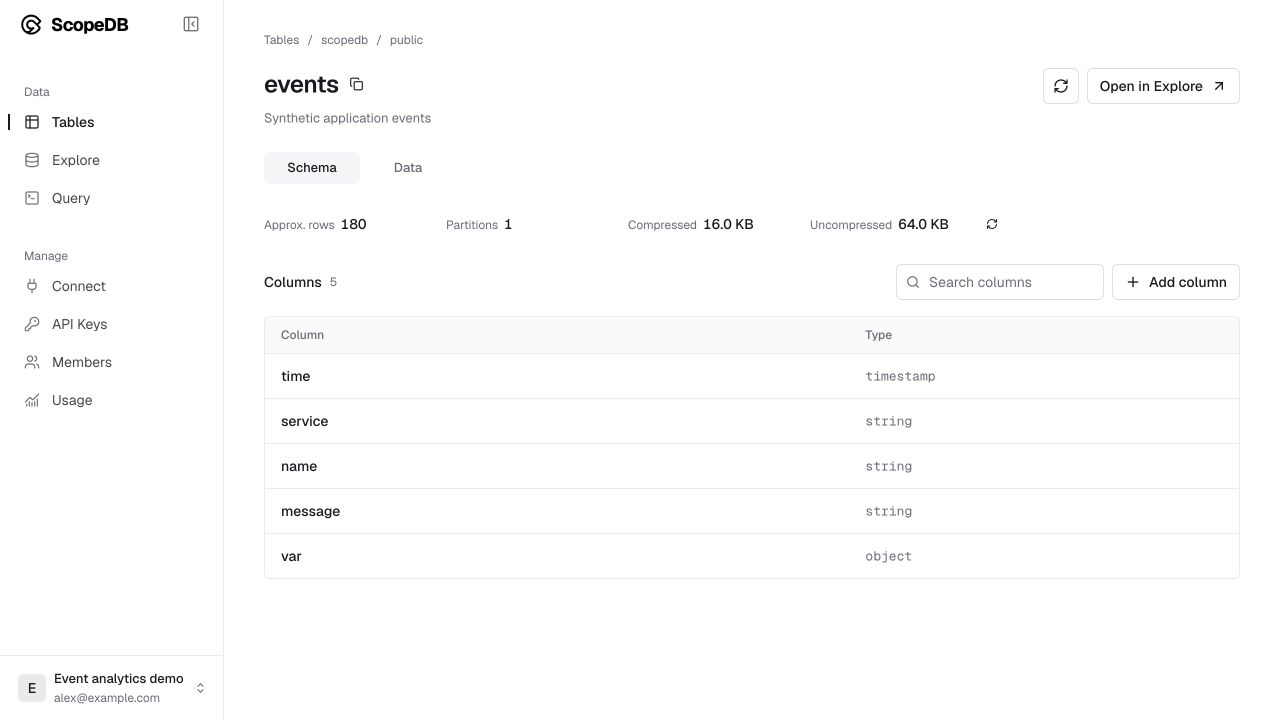
In **Catalog** on the left, expand a database and schema (or choose **All tables** or **Recent tables**), or use **Search tables** to find a table across the workspace. Select `events`, then switch to **Manage** to inspect its definition and statistics.
[](https://www.scopedb.io/content/docs/console/table-schema.jpg)
Manage shows the table definition in Form or JSON view alongside storage statistics and columns.
Under **Table definition**, check the table's **Description**, **Retention**, **Statistics**, and **Columns**. In the example, `time` is a timestamp, `service`, `name`, and `message` are strings, and `var` holds a flexible object payload. Switch between **Form** and **JSON** to inspect, copy, or download the complete Catalog JSON definition.
The **Statistics** section helps you understand the table's size:
* **Approx. rows** estimates how many rows the table contains.
* **Compressed** shows the stored size; **Uncompressed** helps you compare it with the data's logical size.
Switch to **Explore** when you want to preview rows, filter by time, or investigate specific events. For an exact row count, run `FROM scopedb.public.events AGGREGATE count()` in [Query](https://www.scopedb.io/docs/guides/console-query.md).
## Create a table
Select **Create table** in **Data** (or choose the `+` action beside a schema in **Catalog**):
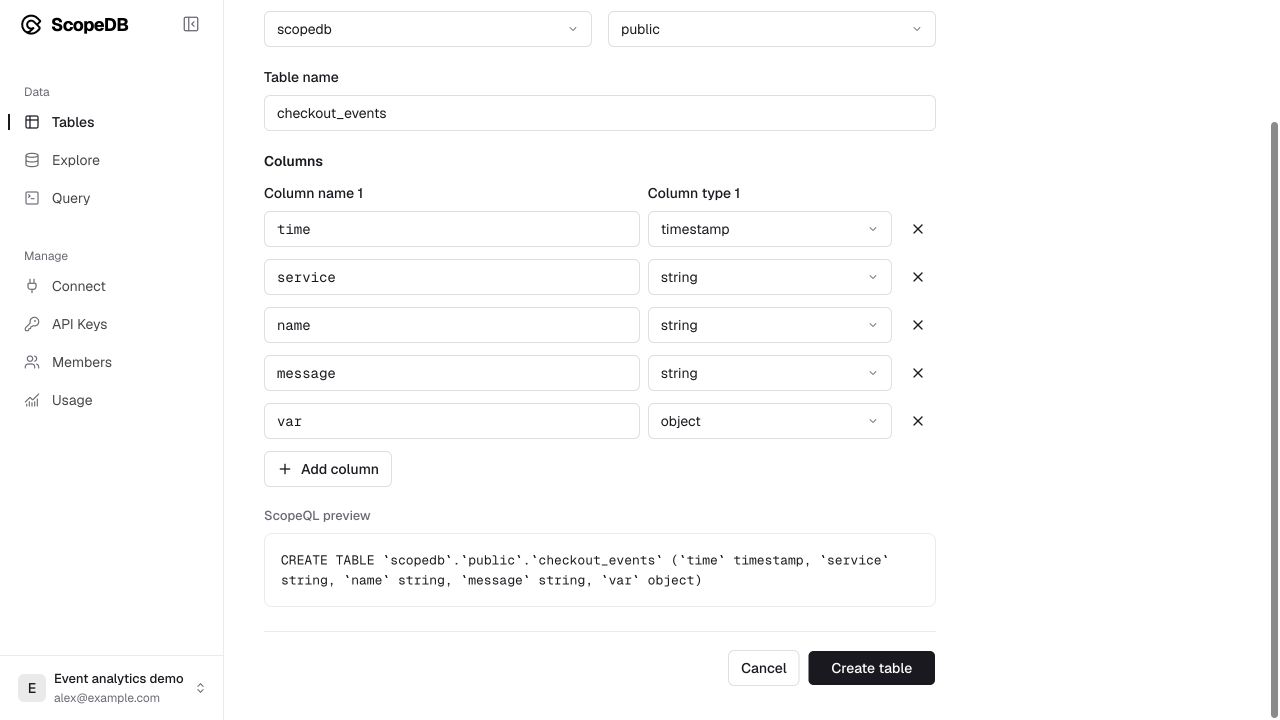
1. Choose the destination **Database** and **Schema**, and enter a **Table name**.
2. Add columns and select their types in **Form** (or switch to **JSON** or **Import JSON** to supply a definition), and optionally set **Description** and **Retention** under **Table settings**.
3. Select **Review changes** to verify the location and proposed definition, then select **Create table**.
[](https://www.scopedb.io/content/docs/console/table-create.jpg)
Define the table in Form or JSON, then select Review changes before creating the table.
For the quickstart model, add `time` as `timestamp`, `service`, `name`, and `message` as `string`, and `var` as `object`. Use a different table name if `events` already exists. You can create a database (**Create database** at the bottom of **Catalog**) or a schema (**Create schema** on a database page) using the same two-step review workflow.
## Edit or delete a table
Select **Edit table** in the table header to add or change columns, update retention, or edit the description in **Form** or **JSON** view. Select **Review changes** to compare the **Current** and **Proposed** definitions before selecting **Update table**. Changes that can remove existing data require explicit confirmation before they can be applied. Follow [model event data](https://www.scopedb.io/docs/guides/model-flexible-events.md) when coordinating a schema change with producers.
Switch to **JSON** in **Edit table** (or use [`scope catalog`](https://www.scopedb.io/docs/guides/scopedb-cli/catalog.md)) when you want to configure [computed columns](https://www.scopedb.io/docs/reference/computed-columns.md), [search indexes](https://www.scopedb.io/docs/guides/add-indexes.md), [clustering](https://www.scopedb.io/docs/guides/storage-architecture.md#clustering-with-cluster-by), partitioning, or deduplication rules. Select **Refresh definition** on **Manage** after applying a Catalog change from the CLI or an SDK.