# Members in Console
[Read this page in HTML](https://www.scopedb.io/docs/guides/console-members)
Open **Members** to see who can use the current workspace. Check the workspace name before inviting someone or changing access.
[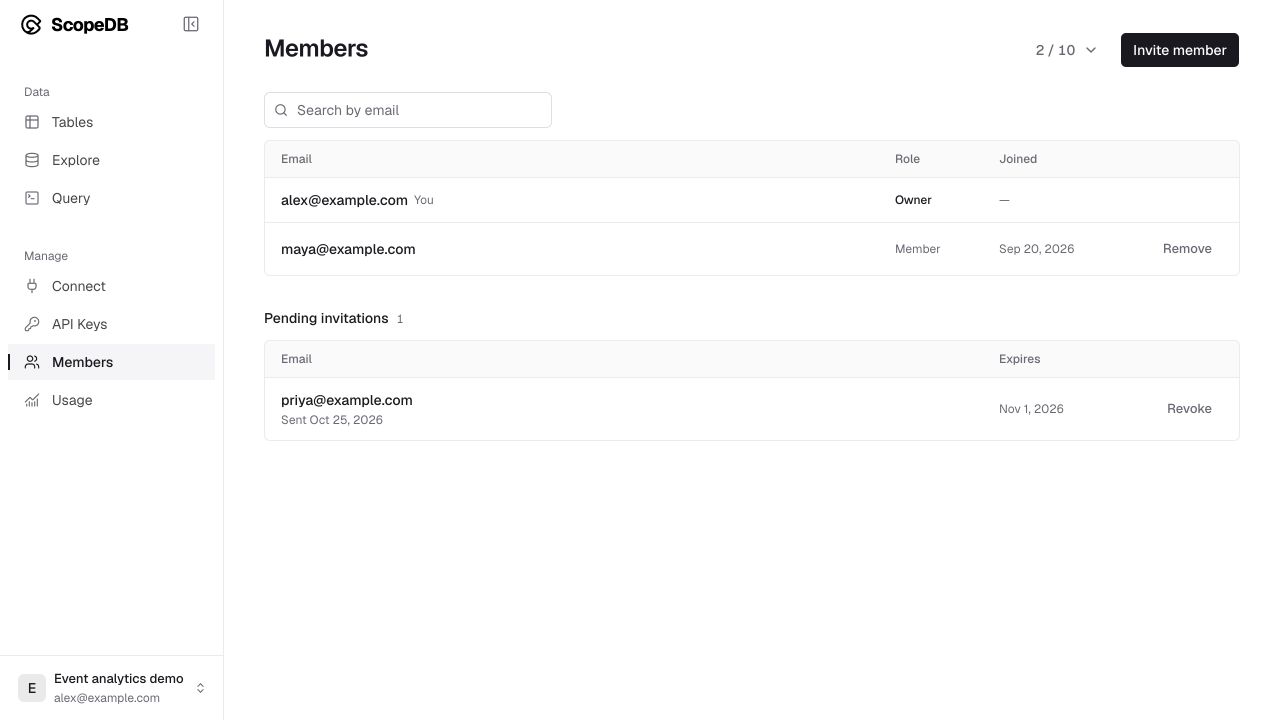](https://www.scopedb.io/content/docs/console/members.jpg)
Review current members, pending invitations, and available seats in one place.
## Invite a teammate
The workspace **Owner** can invite and remove members. A **Member** can use the workspace's tables, queries, exploration tools, usage, and API keys, and view the member list.
1. Select **Invite member**.
2. Enter your teammate's email address and submit the invitation.
3. Ask them to open the invitation email, sign in, and accept.
The invitation appears under **Pending invitations** until accepted. The member-slot count includes members and pending invitations, and excludes the owner. If no seats are available, review pending invitations before inviting another person.
## Review or remove access
As the owner, select **Revoke** beside a pending invitation to cancel it, or **Remove** beside a member to remove their access. Review and complete the confirmation.
Removing a member does not rotate shared application API keys. Review [API Keys](https://www.scopedb.io/docs/guides/authentication.md) and replace keys the person may have handled when required.
Use [workspaces and sessions](https://www.scopedb.io/docs/guides/console-workspaces.md) to switch workspace or manage your own terminal sessions.