# Connect a client
[Read this page in HTML](https://www.scopedb.io/docs/guides/connect-to-scopedb)
Use **Home** in [ScopeDB Console](https://console.scopedb.cloud) to connect an AI agent, your terminal, or an application to the active workspace. **Home** prefills your workspace ID and **ScopeDB API** endpoint in the setup snippets.
## Copy your connection details
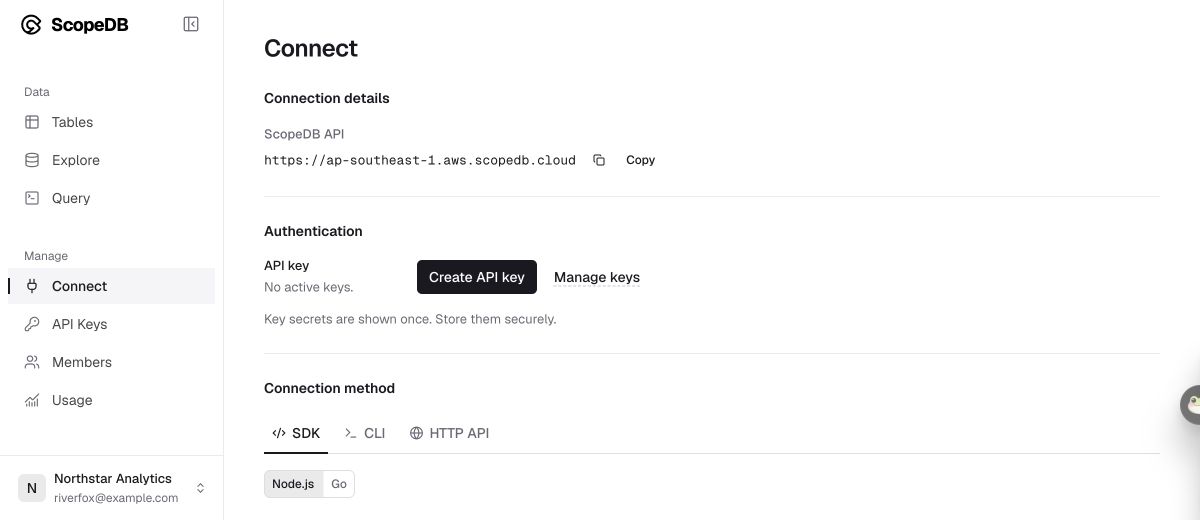
On **Home**, copy **Workspace ID** or the address labeled **ScopeDB API** from the workspace connection bar. Always use the values shown for your current workspace.
When a workflow requires a workspace API key, select **Create key** (or open [API Keys](https://www.scopedb.io/docs/guides/authentication.md)) to create one and store its secret securely. Existing keys do not reveal their secrets again.
[](https://www.scopedb.io/content/docs/console/connect.jpg)
Choose a connection method and follow its setup instructions. The address shown is an example.
## Start with an agent
Under **Get started** on **Home**, select **Agent** and choose what your agent should do first:
* **Try sample data**: Your agent installs the official ScopeDB skill, connects to your workspace, loads the 40-event order dataset from the [quickstart](https://www.scopedb.io/docs/guides/quickstart.md) into an `events` table, diagnoses where orders stop progressing, and generates a self-contained offline chart.
* **Connect my project**: Your agent inspects your local repository, proposes an event table schema for your confirmation before creating the table, and helps you send and query a first test event.
* **Explore tables**: Your agent discovers existing tables and columns, answers your first question with read-only ScopeQL queries, and records confirmed definitions and reusable queries in a local `CONTEXT.md` file.
Paste the copied prompt into Claude Code, Codex, or another agent with web and terminal access, then approve the browser login when prompted. See [Start with your agent](https://www.scopedb.io/agent) and the [Agent skill guide](https://www.scopedb.io/docs/guides/agent-skill.md) for details on local and remote agent authentication and workflows.
## Connect from your terminal
Select **Terminal** to install [ScopeDB CLI](https://www.scopedb.io/docs/guides/scopedb-cli.md) (`scope`) and choose an authentication method:
* **Browser login (Interactive)**: Sign in with your ScopeDB account and bind the terminal to your workspace without managing an API key:
```bash
scope auth login
scope workspace use ''
scope query 'SELECT 1 AS ready'
```
* **OIDC sign-in (CI & scripts)**: On CI providers that issue OIDC tokens, such as GitHub Actions, data commands sign in with the job's token instead of a stored key. See the [automation guide](https://www.scopedb.io/docs/guides/scopedb-cli/automation.md).
A successful query returns a `ready` column containing `1`. If it fails, use the [connection troubleshooting guide](https://www.scopedb.io/docs/guides/scopedb-cli/connect.md#diagnose-a-connection) for further checks.
## Connect your application
Select **Node.js**, **Go**, or **Rust** when sending events or running queries from application code. Each tab provides copyable setup and query snippets using `SCOPEDB_ENDPOINT` and `SCOPEDB_API_KEY`. Keep your API key in server-side configuration.
The SDK guides cover client-specific setup and writing rows: [JavaScript](https://www.scopedb.io/docs/guides/sdks/nodejs.md), [Go](https://www.scopedb.io/docs/guides/sdks/go.md), and [Rust](https://www.scopedb.io/docs/guides/sdks/rust.md). For a custom HTTP client, use the [API reference](https://www.scopedb.io/docs/api-reference.md).
## Write and check your first events
Follow the [quickstart](https://www.scopedb.io/docs/guides/quickstart.md) to create a table, write sample events, and query them back. Once your agent or application writes data, open **Data** in Console, choose the destination table, and select a time range that includes your new events.